
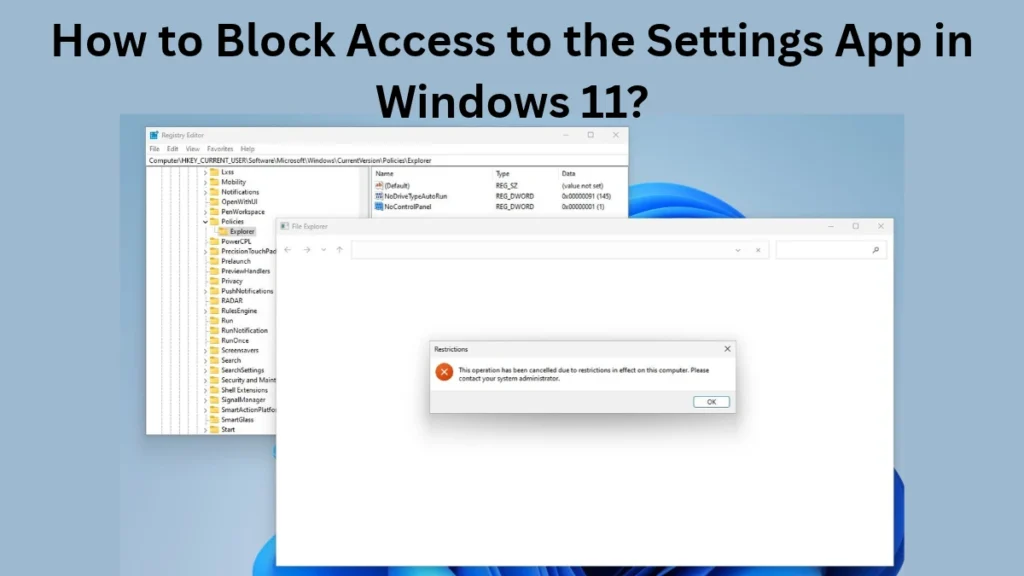
Blocking the Settings App in Windows 11 can help users protect their computer’s system settings from unauthorized changes. If a computer is shared by multiple people—such as children—or is located in an office, school, or public space, restricting access to the Settings App can help maintain better control over the system.
In Windows 11, the Settings app lets users change options for Wi-Fi, Bluetooth, Display, Accounts, Privacy, Windows Update, and other system settings. If someone else alters these settings, it could negatively impact the normal operation of the computer.
In this guide, we will explore different methods to disable or block the Settings App in Windows 11, including the use of the Local Group Policy Editor, the Windows Registry, and other security measures. We will also cover how to re-enable the Settings App and discuss important considerations to keep in mind throughout this process.
Why Block the Settings App in Windows 11?
There are several practical reasons for restricting the Settings App. However, before blocking it, it is important to understand that this change may also affect other individuals who use the computer.
Key reasons include:
– Preventing unauthorized changes: It helps stop other users from modifying critical system settings.
– Securing office computers: It limits the ability of employees to make unwanted changes to display, network, or other configurations.
– Controlling access for children: It prevents children from accessing certain system options.
– Managing public computers: It reduces the likelihood of settings being altered on computers in libraries, training centers, or other shared environments.
– Maintaining system configuration: It helps ensure that established settings are not changed without authorization. Keep in mind that blocking the Settings app is not a complete security solution on its own. It does not necessarily block all system tools, command-line options, or other administrative features.
Method 1: Blocking the Settings App via the Local Group Policy Editor
In editions such as Windows 11 Pro, Enterprise, and Education, you can restrict access to the Settings app and Control Panel using the Local Group Policy Editor.
This method is useful for computers where the Group Policy Editor is available. Since this tool is generally not available in Windows 11 Home, the Registry-based method can be used instead.
Step 1: Open the Local Group Policy Editor
Follow these steps on your Windows 11 computer:
1. Press Windows + R on your keyboard.
2. Type `gpedit.msc` into the Run dialog box.
3. Press Enter.
4. If prompted by User Account Control, grant the necessary permission.
The Local Group Policy Editor will then open.
Step 2: Access the Control Panel Policy
In the Local Group Policy Editor, navigate to the following path:
User Configuration → Administrative Templates → Control Panel
Here, you will see various policies related to the Control Panel and Settings.
Step 3: Restrict Access to Settings and the Control Panel
In the list displayed on the right, locate the policy named “Prohibit access to Control Panel and PC settings.”
Then, follow these steps:
1. Double-click the policy.
2. Select the “Enabled” option.
3. Click “Apply.”
4. Click “OK” to save the changes.
Enabling this policy restricts access to both the Control Panel and PC Settings for the affected user. Therefore, rather than just blocking the Settings app, it affects both interfaces. Step 4: Apply the Policy
To apply the changes, open the Command Prompt and run the following command:
`gpupdate /force`
Once the command has finished executing, sign out and sign back in, or restart your computer if necessary.
Now, when the affected user attempts to open the Settings app or Control Panel, they may see a message indicating that access is restricted.
Important: This policy falls under “User Configuration.” Therefore, its effect is determined by the specific user account to which the policy has been applied. If there are multiple accounts on the computer, ensure you verify the correct account and the policy scope.
Method 2: Block the Windows 11 Settings App via Registry Editor
If you are using the Windows 11 Home Edition, you can also restrict access to the Settings app and Control Panel using the Registry Editor.
Making incorrect changes to the Registry can affect how your system functions. Therefore, it is advisable to create a backup of the Registry before proceeding.
Step 1: Open the Registry Editor
1. Press Windows + R.
2. Type `regedit` into the Run box.
3. Press Enter.
4. If a User Account Control prompt appears, grant permission.
The Registry Editor will now open.
Step 2: Navigate to the correct Registry path
Open the following path for the current user:
`HKEY_CURRENT_USER\Software\Microsoft\Windows\CurrentVersion\Policies\Explorer`
If a key named `Explorer` does not exist, right-click on `Policies`, select **New → Key**, and name it `Explorer`.
This change applies only to the current user. Applying the same policy to all users may require a different registry scope.
Step 3: Create a new DWORD value
Right-click in the space on the right-hand side and select:
**New → DWORD (32-bit) Value**
Name the new value:
`NoControlPanel`
Double-click on this value and set its data to `1`.
– Value `1`: Enables the policy that restricts access to the Control Panel and Settings.
– Value `0`: Removes the restriction applied via this registry value.
Note that this method does not restrict the Settings app in isolation; it may also affect the Control Panel.
Step 4: Apply the changes
Close the Registry Editor, sign out of your computer, and sign back in. You may need to restart your computer.
Access to the Settings app and Control Panel should now be restricted for the affected user.
To remove the restriction, navigate to the same registry path and set the data for `NoControlPanel` to `0`, or simply delete the value. Before making any changes to the registry, ensure that you are working with the correct user and the correct key.
Method 3: Use AppLocker or Application Control to block only the Settings app
In some scenarios, it may be necessary to block only the Settings app while keeping the Control Panel accessible. In such cases, the standard Group Policy for the Control Panel will not be sufficient.
For this, depending on your organization’s requirements and the Windows edition, you may consider using application control solutions such as AppLocker or Windows Defender Application Control (WDAC). These features allow you to either permit the execution of specific apps or restrict their usage. However, it is essential to configure the associated rules correctly.
Before adopting this approach, keep the following in mind:
– Verify your Windows version and the available management features.
– Test the rules first in “Audit Mode” or on a test computer where the feature is available.
– Ensure you retain the necessary permissions for your administrative account.
– Create rules based on the actual package details of the Settings app and how it is implemented on the system.
– After applying the rules, test Windows Update, network connectivity, account management, and other critical functions.
Incorrect Application Control rules can prevent even legitimate apps from running. Therefore, it is advisable to conduct thorough testing before implementing these policies across a large corporate network.
How to re-enable the Settings app in Windows 11?
If you previously blocked the Settings app and now wish to re-enable it, remove the restriction using the same method that was originally applied.
Removing restrictions via Group Policy:
1. Press Windows + R.
2. Type `gpedit.msc` and press Enter.
3. Navigate to: User Configuration → Administrative Templates → Control Panel.
4. Open the policy: “Prohibit access to Control Panel and PC settings.”
5. Set it to “Not Configured” or “Disabled.”
6. Click Apply and then OK.
Afterward, if necessary, run `gpupdate /force`, then sign out and sign back in.
Removing restrictions via the Registry:
1. Open the Registry Editor.
2. Navigate to: `HKEY_CURRENT_USER\Software\Microsoft\Windows\CurrentVersion\Policies\Explorer`
3. Locate the `NoControlPanel` value.
4. Set its data to `0` or delete the value entirely.
5. Sign out and sign back in.
Note: If the restriction was applied via a different Group Policy, an organizational management policy, or an Application Control rule, simply modifying the Registry value will not be sufficient. Things to Consider Before Blocking the Settings App
It is important to take certain precautions before restricting the Settings App in Windows 11.
1. Maintain an Administrator Account
Ensure that at least one authorized Administrator account remains available on the computer, so that system settings can be modified or issues resolved if the need arises.
2. Create a Registry Backup
Before making any changes to the Registry, export and save the relevant keys. This will help in restoring the previous configuration should any errors occur.
3. Do Not Apply Uniform Restrictions to All Users
If the computer is used by different types of users—such as Administrators, employees, or guests—tailor the restrictions according to the specific requirements of each account type.
4. Evaluate Essential System Functions
Disabling the Settings App may hinder access to key features such as Display, Network, Bluetooth, Windows Update, and Account Management. Assess these requirements before implementing any restrictions.
5. Prioritize Organizational Policies
If the computer is part of an office, school, or other organization, use the organization’s approved Group Policy or Device Management policies instead of making manual changes to the local Registry.
Conclusion
Group Policy and the Registry Editor are two practical methods for blocking the Settings app in Windows 11. If the Group Policy Editor is available, you can restrict access to the Control Panel and the Settings app by enabling the relevant policy. In Windows 11 Home, a similar restriction can be applied using the Registry Editor.
If your goal is to block only the Settings app while keeping the Control Panel accessible, you should consider more specialized options, such as application control solutions.
Before implementing any of these methods, ensure you have selected the correct user account, created a backup of the Registry, and verified the necessary system features. This will help maintain normal computer usage while limiting unauthorized changes.
FAQs Regarding Blocking the Settings App in Windows 11
1. How can I block the Settings app in Windows 11?
To block the Settings app in Windows 11, you can use the Local Group Policy Editor to enable the “Prohibit access to Control Panel and PC settings” policy. In Windows 11 Home, you can use the Registry Editor.
2. Can the Settings app be disabled in Windows 11 Home?
Yes, in Windows 11 Home, you can use the Registry Editor to create a `NoControlPanel` DWORD value and set its data to `1`. This restricts access to both the Settings app and the Control Panel.
3. Does blocking the Settings app also disable the Control Panel?
Yes, both the “Prohibit access to Control Panel and PC settings” Group Policy and the `NoControlPanel` Registry value restrict access to the Control Panel along with the Settings app.
4. How can I re-enable the Settings app in Windows 11?
In the Group Policy Editor, set the relevant policy to “Not Configured” or “Disabled.” If you used the Registry, change the data for the `NoControlPanel` value to `0` or delete the value entirely.
5. Is it necessary to restart the computer to block the Settings app?
A restart is not always required. In many cases, signing out and signing back in, or running the `gpupdate /force` command, can help apply the changes.
6. Does blocking the Settings app disable Windows Update?
No, blocking the Settings app does not automatically stop the Windows Update service. However, it may make it difficult for a user to access update options through the Settings interface.
7. Is it possible to disable only the Settings app without blocking the Control Panel?
Yes; in certain scenarios, application control solutions—such as AppLocker or Windows Defender Application Control—can be used to restrict specific apps. This requires proper configuration and depends on the specific version of Windows being used.
8. Will blocking the Settings app apply the restriction to all users?
No; this depends on the method used and its scope. A registry change made under `HKEY_CURRENT_USER` affects only the settings for the current user.


3 comments