
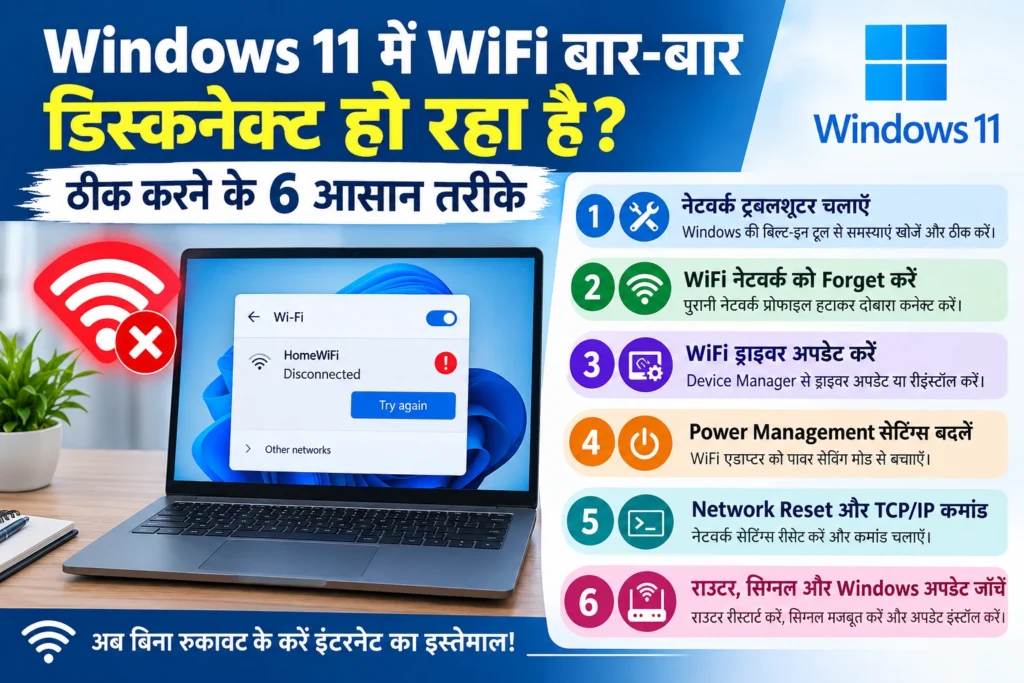
Frequent WiFi disconnections in Windows 11 are common. This can disrupt activities like web browsing, online meetings, video streaming, online gaming, and file downloads. Sometimes the WiFi turns off on its own, the internet connection drops unexpectedly, or the laptop fails to reconnect to the WiFi network.
Several factors can cause this, including an outdated WiFi driver, incorrect network settings, power-saving options, a weak WiFi signal, router issues, or glitches in the Windows network configuration. The good news is that many of these problems can be resolved using the tools and settings already available in Windows 11.
In this guide, we will explore 6 simple and practical methods to fix WiFi disconnection issues in Windows 11. We will walk through the steps for each method, helping you restore a stable internet connection without needing to make complex or unnecessary technical changes.
Why does WiFi frequently disconnect in Windows 11?
Before attempting a fix, it is helpful to understand the potential causes. WiFi connection drops in Windows 11 can occur due to the following reasons:
Outdated or faulty WiFi driver: The network adapter driver may not be functioning correctly.
Power-saving settings: Windows might turn off the WiFi adapter to conserve power.
Weak WiFi signal: The connection can become unstable due to a large distance from the router or physical obstructions like walls.
Router issues: Problems may stem from the router’s firmware, network capacity, or the internet service itself.
Incorrect network configuration: There could be issues with IP address, DNS, or TCP/IP settings.
Windows update-related issues: WiFi connectivity can sometimes be affected following a system update or changes to a driver.
Now, let’s move on to the methods for resolving these issues.
Method 1: Run the Network Troubleshooter to prevent WiFi from disconnecting in Windows 11
Windows 11 includes a Network Troubleshooter designed to detect internet connection issues. It can identify common problems related to your network adapter or internet connection and suggest potential solutions.
Steps to run the Network Troubleshooter:
1. Press Windows + I on your keyboard to open Settings.
2. Select the “System” option from the left-hand menu.
3. Scroll down and click on “Troubleshoot.”
4. Open the “Other troubleshooters” option.
5. Look for “Network and Internet” or a similar network-related troubleshooter from the list. (The exact name may vary depending on your version of Windows 11.)
6. If an option to check for issues via “Get Help” appears, select it and follow the on-screen instructions.
Once the troubleshooter has finished its check, apply any suggested fixes. Then, try reconnecting to your WiFi to see if the issue is resolved.
Note: If the troubleshooter does not detect any problems, it does not necessarily mean that your WiFi adapter is functioning perfectly. In such cases, try the following methods.
Method 2: “Forget” the WiFi network and reconnect
Sometimes, a saved WiFi network profile in Windows 11 can cause connection issues. “Forgetting” the network removes old wireless settings, allowing you to establish a fresh connection.
How to “forget” a WiFi network:
1. Press Windows + I to open Settings.
2. Click on “Network & internet.”
3. Select the “WiFi” option.
4. Go to “Manage known networks.”
5. Select the WiFi network that is causing the issue.
6. Click the “Forget” button.
7. Open the list of available WiFi networks.
8. Select your network name and click “Connect.” 9. Enter the WiFi password to connect.
Once the connection is established, use the internet for a while to check whether the WiFi connection remains stable.
This process removes the saved password and the profile for that network. Therefore, you will need to enter the correct password again when reconnecting.
If the WiFi connection was frequently dropping and the old network profile was the cause, this method may resolve the issue.
Method 3: Update or Reinstall the WiFi Driver
An outdated, incompatible, or faulty WiFi driver is a potential reason for internet disconnections in Windows 11. A driver is the software that enables Windows to communicate with your laptop or computer’s wireless network adapter.
If the problem began after a Windows update, or if the WiFi connection keeps dropping, checking the network driver can be helpful.
Update the WiFi driver via Device Manager:
1. Right-click the Start button.
2. Open Device Manager.
3. Expand the “Network adapters” section.
4. Locate your wireless network adapter. It may be listed under names like Intel Wireless, Realtek Wireless, MediaTek, or another manufacturer.
5. Right-click on the adapter.
6. Select “Update driver.”
7. Click on “Search automatically for drivers.”
8. If a suitable driver is found, follow the on-screen instructions.
9. Restart your computer once the process is complete.
If Windows does not find a new driver, it does not necessarily mean that one is not available on the manufacturer’s website. Search for the WiFi driver specific to your device model on the official website of your laptop or computer manufacturer.
When should you reinstall the WiFi driver?
If the issue persists even after updating the driver, reinstalling it could be the next step.
In Device Manager, right-click on your WiFi adapter and select “Uninstall device.” Then, restart your computer. Windows may attempt to reinstall the driver automatically.
If the driver does not install automatically, use the correct driver downloaded from the manufacturer’s website. It is best to have the necessary driver ready before uninstalling, especially if there is no alternative way to access the internet on your computer.
Method 4: Change the WiFi adapter’s Power Management settings
In Windows 11, some network adapters have power-saving settings. In certain situations, these settings can affect the stability of your wireless connection.
If your WiFi disconnects suddenly—especially when using a laptop—check your Power Management settings.
Steps to change WiFi Power Management settings:
1. Right-click the Start button.
2. Open Device Manager.
3. Click on “Network adapters.”
4. Double-click your WiFi adapter.
5. Look for the “Power Management” tab.
6. If this tab is available and you see an option to “Allow the computer to turn off this device to save power,” uncheck it.
7. Click OK.
8. Restart your computer.
Afterward, try connecting to your WiFi network to see if the disconnection issue has improved.
Important: Not all WiFi adapters have a “Power Management” tab. If you do not see this option, there is no need to force changes to other settings.
On a laptop, you can also check the “Power mode” by going to Settings > System > Power & battery. If the issue only occurs when running on battery power, compare the connection stability across different power modes. Method 5: Use Network Reset and TCP/IP Commands
If the methods mentioned above do not work, resetting the network settings in Windows 11 might be helpful. This can resolve certain issues related to network configuration.
However, please note that a Network Reset may affect saved networks and certain network adapter settings. Therefore, consider this an option to try later, rather than as a first step.
How to perform a Network Reset in Windows 11:
1. Press Windows + I to open Settings.
2. Select “Network & internet.”
3. Click on “Advanced network settings.”
4. Open the “Network reset” option.
5. Click on “Reset now.”
6. Select “Yes” to confirm, if prompted.
7. Restart your computer once the process is complete.
After the reset, select your WiFi network again and enter your password to connect. If you use a VPN or other specialized network software, you may need to reconfigure it.
Run Network Commands via Command Prompt
For certain network issues, refreshing your TCP/IP and DNS settings can be helpful.
1. Type `cmd` in the Start menu.
2. Right-click on “Command Prompt” and select “Run as administrator.”
3. Execute the following commands one by one:
“`
ipconfig /flushdns
ipconfig /release
ipconfig /renew
netsh winsock reset
“`
Wait for each command to complete. Once all commands have been executed, restart your computer and check your internet connection.
Each of these commands serves a different purpose: `ipconfig /flushdns` clears the DNS cache, while `ipconfig /release` and `ipconfig /renew` help release and obtain a new IP address via DHCP. `netsh winsock reset` resets the Windows Winsock catalog.
If you are using an office network, a static IP address, or a specific VPN configuration, it is advisable to note down your current network settings before making these changes.
Method 6: Check Your WiFi Router, Signal, and Windows Updates
If your WiFi keeps disconnecting on Windows 11, the issue may not necessarily lie with your computer. Sometimes, connection drops are caused by problems with the internet router, the wireless signal, or the internet service itself.
Therefore, before changing any computer settings, it is useful to determine whether the issue is occurring on just one device or across the entire network.
1. Restart Your WiFi Router
1. Turn off the router.
2. Disconnect the power cable (if safe to do so according to the manufacturer’s instructions).
3. Wait for approximately 30 seconds.
4. Turn the router back on.
5. Wait for all the necessary indicator lights to stabilize.
6. Reconnect your Windows 11 computer to the WiFi.
Restarting the router can resolve temporary network issues. However, if there is an outage on the part of your Internet Service Provider (ISP), simply restarting the router will not resolve the issue.
2. Check Wi-Fi signal strength
If your computer is too far from the router, a weak signal may cause the connection to drop.
Try moving your computer closer to the router.
Keep the router away from thick walls, metal objects, and other potential obstructions.
If your router supports both 2.4 GHz and 5 GHz bands, compare the connection stability on both.
If multiple devices are using the network simultaneously, try temporarily disconnecting some of them to see if that helps.
The 2.4 GHz band generally offers a longer range, while the 5 GHz band can provide faster speeds over shorter distances. Actual performance depends on the router, the distance, and other wireless networks in the vicinity.
3. Check for Windows Updates
Microsoft periodically releases updates for Windows 11, including security patches, bug fixes, and improvements for device compatibility.
To check for updates:
1. Open Settings.
2. Go to Windows Update.
3. Click on “Check for updates.”
4. Install any available updates.
5. If prompted, restart your computer.
If the Wi-Fi issue began immediately after a recent update, you can check for a “Roll Back Driver” option in Device Manager. This option will only appear if it is possible to revert to a previous version of the driver. Avoid removing security updates unless necessary.
4. Test Wi-Fi on another device
Connect your mobile phone or another laptop to the same Wi-Fi network.
If all devices are disconnecting, the issue is likely with the router or the internet service itself.
If only your Windows 11 computer is disconnecting, check the Wi-Fi driver, network settings, or the computer’s wireless adapter. If your device remains connected to the WiFi but there is no internet access, the issue might be related to your internet service or DNS configuration.
This simple test can be very helpful in identifying the potential cause of the problem.
Windows 11 WiFi Disconnects Frequently: Additional Troubleshooting Tips
If your WiFi continues to disconnect even after trying the six methods mentioned above, consider these additional points.
Could a VPN be causing the WiFi to disconnect?
Some VPN applications can affect network traffic and connection behavior. If the problem began after installing a VPN, try disconnecting it temporarily to see if that resolves the issue. If it does, check the settings and updates for your VPN application.
Could there be a hardware issue with the WiFi adapter?
If the WiFi adapter frequently disappears from Device Manager, shows a warning icon, or if the problem persists even after reinstalling the driver, there may be a hardware-related issue.
In such cases, use the manufacturer’s diagnostic tools or contact their technical support. Testing with a USB WiFi adapter can also help determine whether the issue lies with your internal wireless adapter.
Will changing the WiFi password fix the problem?
Generally, changing your WiFi password is not the solution for frequent disconnections. If the password were incorrect, your device wouldn’t be able to connect to the network at all. However, if the connection is established but keeps dropping, it is more effective to check your drivers, signal strength, and network settings.
Conclusion
The issue of frequent WiFi disconnections in Windows 11 can be frustrating, but it is often easy to identify the cause with the right troubleshooting steps. Start by “forgetting” the WiFi network and reconnecting, running the network troubleshooter, and updating your WiFi driver. Following this, check your power management settings, perform a network reset, and examine the status of your router.
If the problem occurs on only one computer, focus on the network driver and Windows settings. If the internet connection drops across all your devices, check your router or your internet service provider.
By following these six methods in order, you can identify the likely cause of WiFi disconnections in Windows 11 and take the necessary steps to make your internet connection more stable.
Frequently Asked Questions (FAQs)
1. Why does WiFi frequently disconnect in Windows 11?
There are several reasons why WiFi might frequently disconnect in Windows 11, including outdated WiFi drivers, weak signals, router issues, power-saving settings, or incorrect network configurations. You can often pinpoint the source of the problem by checking the WiFi connection on other devices.
2. How can I quickly fix WiFi disconnection issues in Windows 11?
Start by toggling the WiFi off and back on, and restart your computer. Also, restart your router and check if the internet works on other devices. If the problem persists, try “forgetting” the WiFi network and reconnecting, or updating your network driver.
3. Can updating the WiFi driver help stabilize the internet connection?
Yes. If the issue is caused by an outdated, faulty, or incompatible driver, updating to the correct version can improve your WiFi connection. It is always best to download drivers directly from the official website of your computer or network adapter manufacturer.
4. What happens when you perform a network reset in Windows 11?
A network reset restores your Windows network settings and network adapter configurations to their default state. This may resolve certain network issues. However, you might need to reconfigure saved WiFi networks and specific network settings.
5. WiFi is connected, but there is no internet access in Windows 11. What should I do?
First, check whether the internet is working on other devices. Next, restart your router, run the network troubleshooter, and clear the DNS cache if necessary. If the internet is unavailable on all your devices, contact your internet service provider.
6. Can WiFi issues occur after a Windows Update?
Yes, in some cases, issues related to driver compatibility or network settings may arise following a Windows update. In such a situation, check for available driver updates. If the problem began after installing a new driver, you can use the ‘Roll Back Driver’ option in Device Manager if it is available.
