
Increasing or decreasing the text size in Windows 11 is quite simple. If the text on your computer or laptop screen appears too small, you can make it larger by adjusting the text size settings. Conversely, if the text is too large and less content is visible on the screen, you can reduce its size.
You do not need to install any additional software to change the text size in Windows 11; you can use the built-in “Accessibility” settings. To resize not only the text but also icons, apps, and other on-screen elements, use the “Display Scale” feature.
In this guide, we will explore how to increase or decrease text size in Windows 11, how to reset settings to their default state, and how to adjust the size of on-screen text to suit your needs.
The Easiest Way to Change Text Size in Windows 11
Windows 11 includes an “Accessibility” option within the Settings menu. This allows you to enlarge or reduce the text appearing in menus, settings, and various applications according to your preference.
Step 1: Open Settings
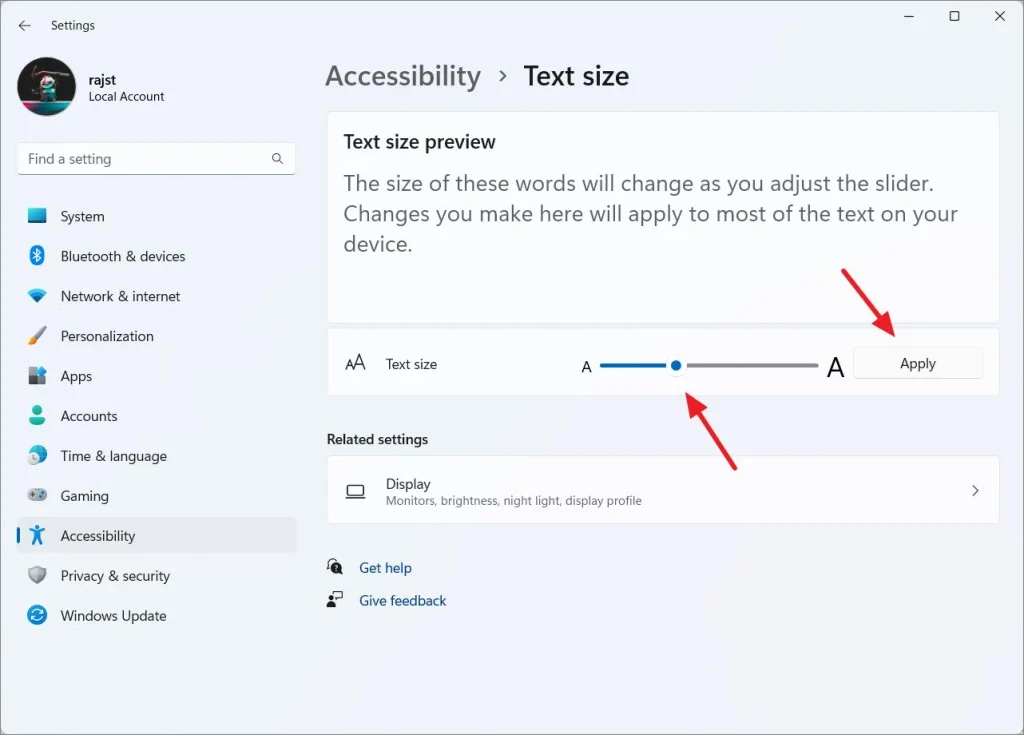
Press the Windows + I keys on your keyboard. This will open the Windows 11 Settings menu.
Step 2: Go to Accessibility
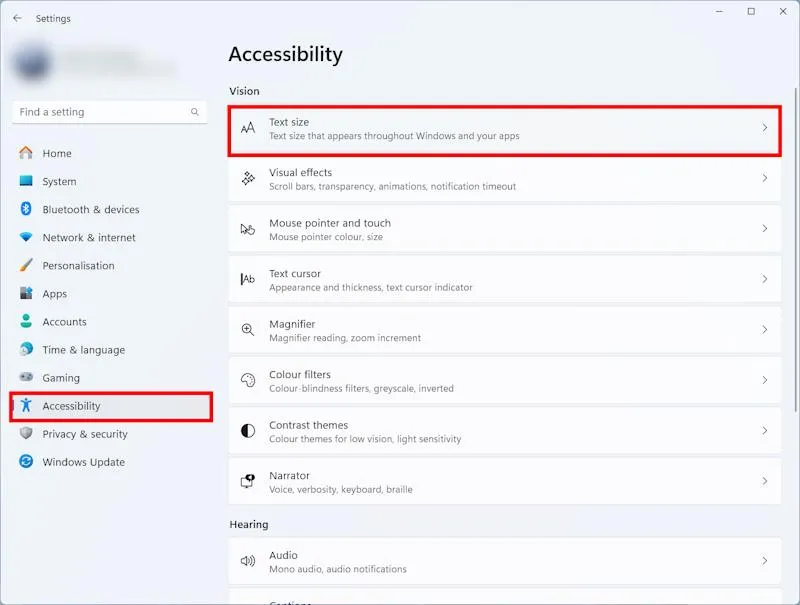
Click on the ‘Accessibility’ option located in the left-hand panel of Settings.
Step 3: Select ‘Text size’
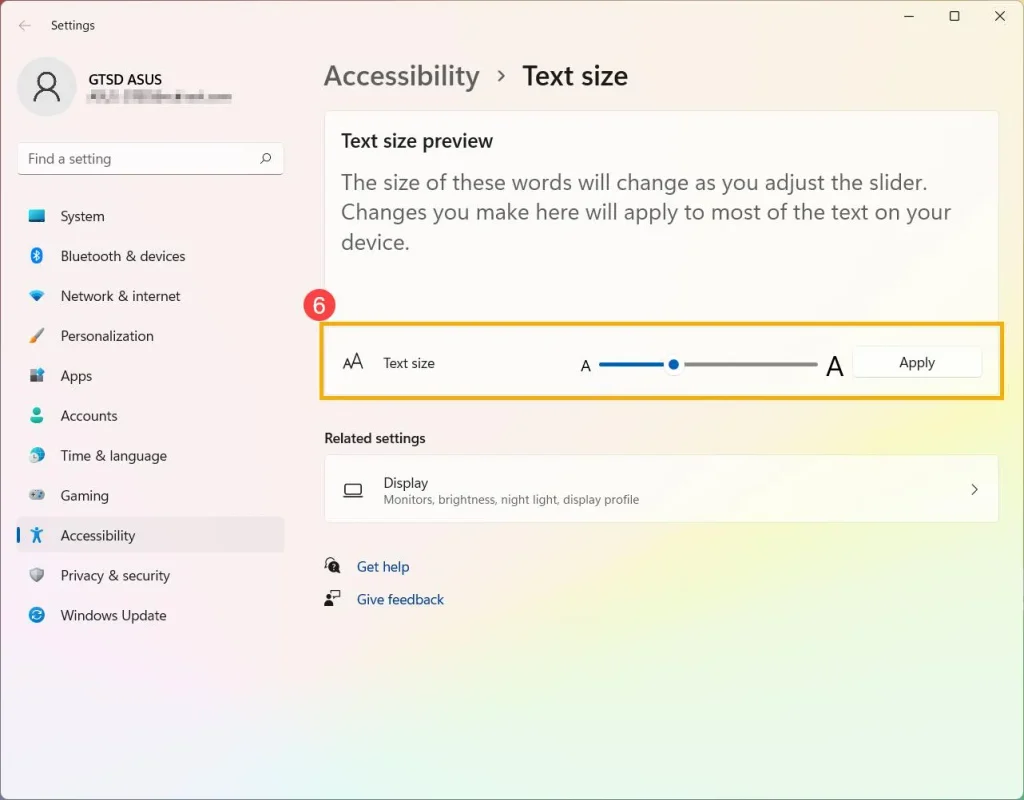
Click on ‘Text size’ within the ‘Vision‘ section. You will see a slider here that allows you to adjust the size of the text.
Step 4: Change the text size
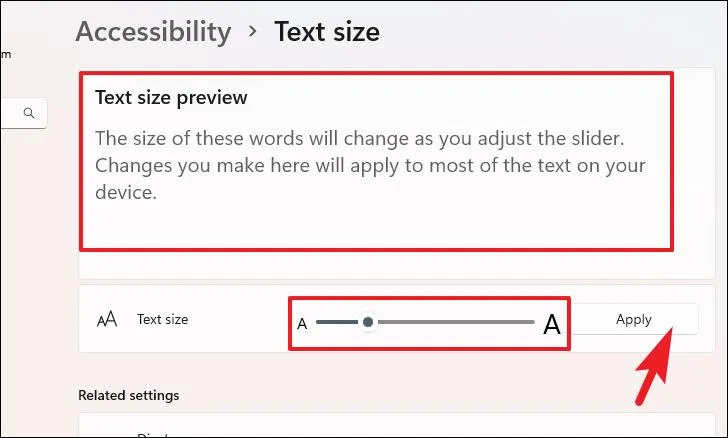
Moving the slider to the right will make the text larger, while moving it to the left will make the text smaller. Check the preview and click ‘Apply’.
Once the setting is applied, the text in supported areas of Windows 11 will appear in the new size. Please note that not all apps implement this setting in the same way.
How to reduce text size in Windows 11?
If the text in Windows 11 appears too large, you can use the ‘Text size’ slider to make it smaller. Smaller text allows more information to be displayed on the screen, which is particularly useful when working with multiple windows simultaneously.
Follow the steps below to reduce the text size:
1. First, open Settings by pressing the Windows + I keys.
2. Click on ‘Accessibility’ on the left side.
3. Then, select the ‘Text size’ option within the ‘Vision’ section.
4. Move the ‘Text size’ slider to the left.
5. Observe the text size in the preview.
6. After selecting the size according to your needs, click Apply.
Text in supported areas of Windows will now appear smaller. If the characters become so small that they are difficult to read, move the slider slightly to the right and click Apply again.
What is the difference between Text Size and Display Scale in Windows 11?
Windows 11 offers separate settings for adjusting the size of text and for scaling the entire screen (making everything appear larger or smaller). Choosing the right option can provide a better visual experience on your screen.
| Feature | Text Size | Display Scale |
| —————- | ———————————- | ————————————————— |
| Primary Function | Adjusts the size of text | Adjusts the size of text, apps, and other elements |
| Icon Size | Generally does not change | Can change |
| Apps and Menus | Supported text becomes larger or smaller | All elements on the screen appear larger or smaller |
| Setting Location | Accessibility → Text size | System → Display → Scale |
Example: Suppose you are having trouble reading the text on your laptop, but the icon size is fine. In this case, increasing the “Text Size” would be the better approach.
On the other hand, if the text, as well as the taskbar, apps, icons, and other items, all appear too small, then adjusting the “Display Scale” might be more useful.
How to change the Display Scale in Windows 11?
If you want to change the size of all elements visible on the screen—not just the text—use the “Display Scale” setting.
Follow these steps to change it:
1. Press Windows + I to open Settings.
2. Go to the “System” section.
3. Select the “Display” option.
4. Look at the options available under the “Scale” section.
5. Choose the appropriate scale for your screen (e.g., 100%, 125%, or 150%, depending on what is available).
Increasing the scale will make text, apps, and other elements appear larger. Decreasing the scale allows more content to be displayed on the screen, though some elements may become smaller and harder to read.
Important: For the best results, it is recommended to use the scale setting suggested by Windows. Choosing a scale that is too low or too high may cause text to appear blurry in some apps, or the layout may not display correctly.
How to reset the text size to the default in Windows 11?
If you have changed the text size and would like to revert it to its original state, go to the ‘Text size’ setting and move the slider back to its default position.
To do this:
1. Open Settings.
2. Click on Accessibility.
3. Select the ‘Text size’ option.
4. Move the slider back to its original position.
5. After reviewing the preview, click Apply.
This will return the text size to its default setting. If you also changed the ‘Display scale’, you will need to reset it separately by going to Settings → System → Display → Scale and selecting the recommended option.
Please note that ‘Text size’ and ‘Display scale’ are two separate settings. Therefore, resetting only the text size may not necessarily restore the entire screen’s scaling to its original state.
Another way to enlarge text in Windows 11: Magnifier
Sometimes, you may not need to enlarge the text across the entire system. For instance, you might need to temporarily zoom in on the screen to read small print, view a specific part of a website, or examine fine details in a document.
In such cases, you can use the Magnifier feature in Windows 11.
To open Magnifier, press the Windows key + Plus (+) sign. This will provide an enlarged view of the screen. You can continue using the Windows key + Plus (+) to increase the zoom level as needed.
To decrease the zoom, press the Windows key + Minus (-) sign. To close Magnifier, press the Windows key + Esc.
This feature is also helpful for individuals who have difficulty reading small text. Note, however, that Magnifier does not change the system’s underlying text settings; instead, it simply magnifies specific areas of the screen.
How to change the text size in a browser on Windows 11?
If text appears small only within Google Chrome or Microsoft Edge, it may be better to adjust the browser’s zoom level rather than changing the global text size settings for Windows.
In Google Chrome and Microsoft Edge:
Ctrl + Plus (+): To zoom in (enlarge the page).
Ctrl + Minus (-): To zoom out (shrink the page).
Ctrl + 0: To reset the page zoom to the default 100%.
These shortcuts allow you to scale the text, images, and other elements on a webpage. This change typically applies only to the specific browser page you are viewing, not to the entire Windows system.
If the text on a particular website appears too small, try adjusting the browser’s zoom level first. This way, you won’t need to modify your general Windows settings.
What to do if text remains small even after changing the text size in Windows 11?
Occasionally, text in certain applications may continue to appear the same size even after you have adjusted the system’s text size settings. This can happen for various reasons. Try the following solutions to resolve the issue.
1. Click the ‘Apply’ button
It is essential to click ‘Apply’ after adjusting the ‘Text Size’ slider. If the setting is not applied, the changes may not take effect.
2. Close and reopen the app
Some apps do not apply the new text size immediately. In such cases, close the app and reopen it to see if the changes have taken effect.
3. Check the Display Resolution
Go to Settings → System → Display and check the ‘Display Resolution’. For the best results, use the resolution marked as ‘Recommended’.
An incorrect resolution can cause text to appear blurry or distorted in size.
4. Check the app’s own settings
Some software programs have their own specific settings for font size, zoom, or display size. If changing the Windows ‘Text Size’ setting does not affect a particular app, check the settings within that app itself.
5. Check for Windows Updates
If the issue persists, go to Settings → Windows Update to check for available updates. It is good practice to back up your important files before installing any updates.
Which setting should you choose to change the text size in Windows 11?
Refer to the list below to select the option that best suits your needs.
To enlarge only the text: Accessibility → Text size.
To reduce the text size: Move the ‘Text size’ slider to the left.
To enlarge icons and apps as well: System → Display → Scale.
To temporarily magnify a specific part of the screen: Use the ‘Magnifier’ tool.
To enlarge only the text on a website: Adjust the browser’s zoom level.
To restore text to its default size: Reset the ‘Text size’ slider and click ‘Apply’.
Using these options, you can customize your Windows 11 screen to suit your reading preferences and work requirements.
Conclusion
Adjusting the text size in Windows 11 is a simple process. Navigate to Settings → Accessibility → Text size, adjust the slider according to your needs, and click ‘Apply’.
If you wish to enlarge icons and apps along with the text, use the ‘Display Scale’ setting. Additionally, the browser’s zoom feature is useful for reading small text on websites, while the ‘Magnifier’ tool helps in enlarging specific parts of the screen.
By choosing the right settings, you can enhance your experience—whether you are reading, browsing, or performing daily tasks—on Windows 11.
Frequently Asked Questions (FAQs)
1. Is there a keyboard shortcut to increase the text size in Windows 11?
There is no direct, universal keyboard shortcut to change the system-wide text size in Windows 11. You can open Settings by pressing ‘Windows + I’ and then navigate to Accessibility → Text size to adjust it. To temporarily magnify the screen, press the’ Windows + Plus (+)’ keys.
2. Can I increase the text size in Windows 11 without installing any additional software?
Yes. Windows 11 includes built-in options for this. Simply go to Settings → Accessibility → Text size, move the slider to the right, and click ‘Apply’.
3. Does changing the text size also enlarge desktop icons?
No, the Text Size setting primarily changes the size of text in supported areas. To change the size of other elements—such as desktop icons and apps—use the Display Scale setting or specific icon settings.
4. How large can you make the text in Windows 11?
The maximum size available on the Text Size slider may vary depending on the version of Windows. Move the slider to the right and check the preview to see which size is most comfortable for you to read.
5. Why does text in Chrome remain small even after changing the Text Size in Windows 11?
Websites in Chrome may have their own zoom levels. In such cases, you can enlarge the page by pressing Ctrl + Plus (+), or reset the zoom to 100% by pressing Ctrl + 0. If the issue persists, check both the Windows Text Size settings and Chrome’s own settings.
6. What is the difference between Text Size and Zoom in Windows 11?
Text Size changes the size of text within supported areas of Windows. Zoom, on the other hand, enlarges or reduces the view of an app, website, or screen. Therefore, you should choose the appropriate option based on your needs.


3 comments