
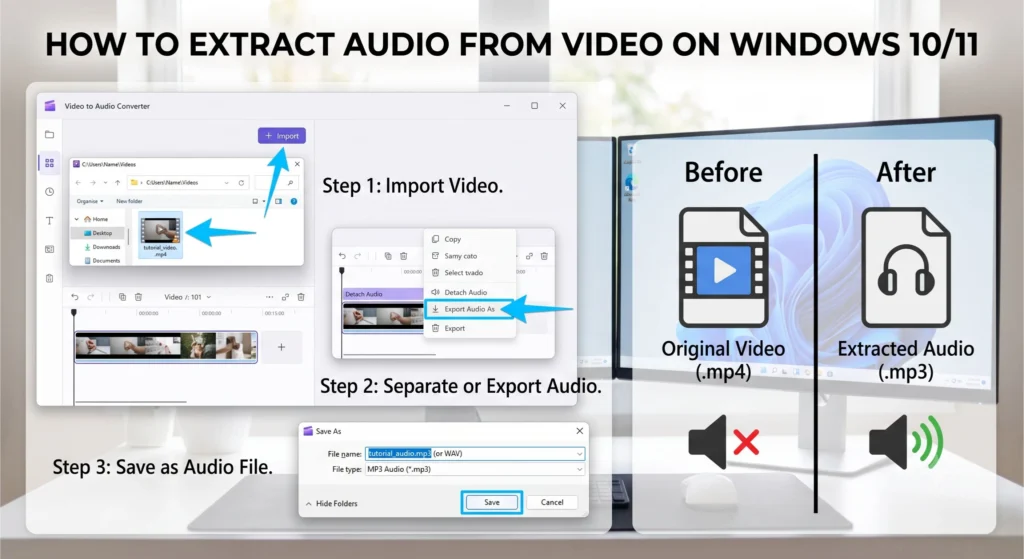
If you have a video file and want to extract only the audio (MP3, WAV, AAC) from it, doing so on Windows 10 and Windows 11 is very easy. Whether you need to save audio from a lecture, extract a song, create a podcast, or isolate a voiceover from a video, you can accomplish this in just a few minutes using the right method.
In this guide, we will explain the complete process of extracting audio from video using free and simple methods, without compromising quality.
Methods to Extract Audio from Video on Windows 10/11
There are several options available for extracting audio on Windows:
VLC Media Player (Easiest and free)
Audacity + FFmpeg
Clipchamp (Built-in option for Windows 11)
FFmpeg (Professional method)
Online Audio Extractors
Each method can be used depending on your specific needs.
Method 1: Extract Audio from Video using VLC Media Player
VLC Media Player is the most popular free media player. It includes a feature to directly convert videos into MP3 or other audio formats.
Step 1: Open VLC
If VLC is not installed on your computer, install it first.
Step 2: Select Convert/Save
Open VLC.
Click on the Media menu.
Select Convert / Save.
Step 3: Add the Video
Press the Add button.
Select the video from which you want to extract the audio.
Then, click on Convert / Save.
Step 4: Choose the Audio Format
Go to Profile and select one of the following options:
Audio – MP3
Audio – FLAC
Audio – CD
Audio – OGG
For most people, MP3 is the best choice.
Step 5: Save the File
Select the save location under Destination. Name the file.
Click on Start.
Your audio will be ready in a few seconds or minutes.
Advantages of VLC
Completely free
No watermark
Supports multiple formats
Fast conversion
Method 2: Extract audio from video using Clipchamp
How to do it
- Open Clipchamp.
- Import the video.
- Place the video on the timeline.
- Click on Export.
- Select the ‘Audio Only’ option (if available).
- Download the MP3 file.
This method is convenient for those who wish to use Windows’ built-in tools.
Method 3: Extract audio from video using Audacity
Audacity is a powerful audio editor.
Requirement
You may need the FFmpeg library to import video into Audacity.
Steps
- Open Audacity.
- Import the video.
- The audio track will appear.
- Remove noise if desired.
- Select File → Export → Export as MP3.
Why choose Audacity?
Audio editing
Noise removal
Volume boosting
Professional export
Method 4: Extract audio from video using FFmpeg
If you want the fastest method without re-encoding, FFmpeg is the best option.
Command to extract MP3
Bash
ffmpeg -i video.mp4 audio.mp3Original audio without quality loss
If the video already contains AAC audio:
Bash
ffmpeg -i video.mp4 -vn -acodec copy audio.aacTo extract WAV
Bash
ffmpeg -i video.mp4 audio.wavAdvantages of FFmpeg
Fastest
No quality loss
Batch processing
Professional use
Method 5: Extract audio from video online
If you do not want to install any software, you can use online tools.
Popular options:
Online Audio Converter
Audio Extractor
Clideo
How to do it
- Open the website.
- Upload the video.
- Select MP3.
- Convert.
- Download.
Things to keep in mind
Avoid uploading private videos.
There may be limits on file size.
Which audio format should you choose?
| Format | Usage |
|---|---|
| MP3 | Most popular |
| WAV | Best quality |
| AAC | Mobile and video |
| FLAC | Lossless audio |
| OGG | Open format |
MP3 is sufficient for general use.
How to maintain quality while extracting audio from video
Keep these points in mind for good audio quality.
Use the source.
Choose a high bitrate.
Avoid repeated conversions.
Use a lossless format (if editing is required).
Use the ‘copy codec’ option in FFmpeg.
Differences between MP3, WAV, and AAC
|
Feature
|
MP3
|
WAV
|
AAC
|
| — | — | — | — |
|
Size
|
Small
|
Large
|
Medium
|
|
Quality
|
Good
|
Best
|
Very Good
|
|
Compatibility
|
Excellent
|
Excellent
|
Excellent
|
|
Editing
|
Okay
|
Best
|
Good
|
Extract audio without installing software
Online tools are sufficient if your video is short.
However, if:
The file is large,
It is a private video,
Or you need to convert frequently,
Then VLC or FFmpeg are better options.
Extract audio from multiple videos at once
FFmpeg is most useful if you have multiple videos.
Example:
Bash
for %f in (.mp4) do ffmpeg -i "%f" "%~nf.mp3"This will create MP3s from all MP4 videos.
Common issues and their solutions
Audio not extracting
Choose a different codec.
Update VLC.
Use FFmpeg.
No sound
Check the original video.
Check if an audio track exists.
MP3 file size is too large
Lower the bitrate.
Uses for extracting audio from video
Creating podcasts
Saving lectures
Interview recordings
Music extraction
Voiceover editing
Creating audiobooks
Meeting recordings
Audio extraction: Windows 10 vs. Windows 11
|
Feature
|
Windows 10
|
Windows 11
|
| — | — | — |
|
VLC
|
Yes
|
Yes
|
|
Clipchamp
|
Separate installation
|
Built-in
|
|
FFmpeg
|
Yes
|
Yes
|
|
Audacity
|
Yes
|
Yes
|
The process remains almost the same on both Windows versions.
Conclusion
Extracting audio from video in Windows 10 and Windows 11 is incredibly easy. If you are looking for the easiest and free method, VLC Media Player is the best choice. If you work at a professional level and want to extract audio without any loss in quality, FFmpeg is the most powerful solution. Meanwhile, Audacity is suitable for those who also need to edit the audio, whereas Clipchamp offers a convenient built-in option for Windows 11 users.
By choosing the right tool, you can obtain high-quality audio in formats like MP3, WAV, AAC, or FLAC within just a few minutes.
Frequently Asked Questions (FAQs)
- How do I extract audio from video in Windows 10/11?
You can easily convert video into audio formats like MP3, WAV, or AAC using tools such as VLC Media Player, Clipchamp, Audacity, FFmpeg, or online audio extractors.
- Can I extract audio for free using VLC Media Player?
Yes, VLC Media Player is completely free and allows you to extract audio from video without any watermarks.
- What is the best format for extracting audio from video?
If you need audio for general use, MP3 is the best choice. However, for editing or high-quality requirements, WAV or FLAC are better options.
- Does extracting audio degrade its quality?
No, if you use the correct settings or select the -acodec copy option in FFmpeg, the original audio quality is preserved.
- Can I extract audio in Windows 11 without installing additional software?
Yes, Clipchamp comes pre-installed on Windows 11 and allows you to export audio from video.
- How do I extract audio without quality loss using FFmpeg? You can use the command below:
Bash
ffmpeg -i video.mp4 -vn -acodec copy audio.aacThis extracts the original audio track without re-encoding it.
- Is it safe to extract audio from videos online?
Online tools are useful for short, casual videos, but for private or sensitive videos, it is safer to use offline tools like VLC or FFmpeg.
- Can audio be extracted from multiple videos at once?
Yes, FFmpeg’s batch processing feature allows you to convert multiple MP4 videos to MP3 simultaneously.
- From which video formats can audio be extracted?
You can extract audio from most popular video formats, including MP4, MKV, AVI, MOV, WMV, and WebM.
- What is the difference between MP3 and WAV?
MP3 files are smaller and suitable for general use, whereas WAV files offer superior quality without compression and are considered better suited for audio editing.


3 comments